How to Add Oura Ring Widgets to Your iPhone Home Screen
Add Readiness, Sleep, Activity, and other Oura scores to your iPhone Home Screen or Lock Screen. Follow the steps and download Ring Widget free.
The Oura app is packed with data, but sometimes you just want to glance at your phone and see your scores without opening anything. Unfortunately, the official Oura app has limited widget support on iOS. That's where Ring Widget comes in.
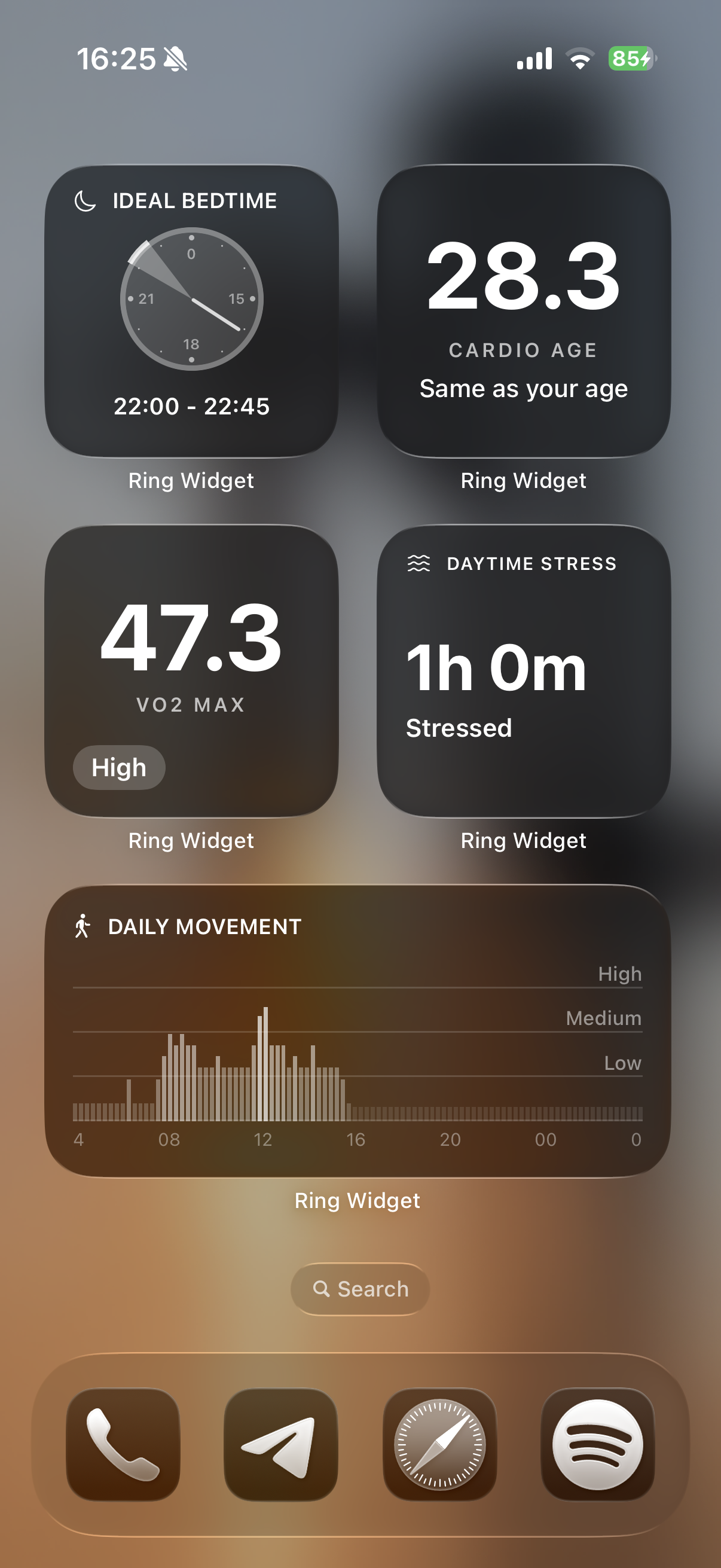
Ring Widget's Oura widgets for iPhone connect to your Oura account and put rich, customizable metrics directly on your Home Screen or Lock Screen. Here's how to set them up.
What You'll Need
- An iPhone running iOS 15 or later (Lock Screen widgets require iOS 16 or later)
- An Oura Ring (Ring 3, Ring 4, or Ring 5)
- An active Oura account
- Ring Widget downloaded from the App Store
Step 1: Download and Connect
- Download Ring Widget from the App Store
- Open the app and tap Sign in with Oura
- You'll be redirected to Oura's authorization page — sign in with your Oura account credentials
- Grant Ring Widget permission to read your health data
- Once connected, your latest scores will appear in the app
Ring Widget uses the official Oura API to access your data. Your credentials are handled entirely by Oura's authentication — Ring Widget never sees your password.
Ready to start? Download Ring Widget free, connect Oura, and return to this guide for the Home Screen steps.
Step 2: Add a Widget to Your Home Screen
- Long-press on an empty area of your iPhone home screen until the apps start jiggling
- Tap the + button in the top-left corner
- Search for "Ring Widget" in the widget gallery
- Browse the available widget sizes and styles
- Tap Add Widget on the one you want
- Drag it to your preferred position and tap Done
Step 3: Choose What to Display
Ring Widget offers several widget configurations:
- Readiness Score — your daily recovery score
- Sleep Score — how well you slept last night
- Activity Score — your movement and activity progress
- Combined view — multiple scores in a single widget
- Heart rate, HRV, and more — detailed metrics at a glance
You can customize which metrics appear by editing the widget. Just long-press the widget on your home screen, tap Edit Widget, and select the data you want to see.
Widget Sizes
Ring Widget supports multiple widget sizes to fit your home screen layout:
- Small — a single score or metric
- Medium — a score with additional context or multiple metrics
- Large — a detailed view with several data points
Mix and match different sizes and configurations to build a health dashboard that works for you.
Lock Screen Widgets
Ring Widget also supports iOS Lock Screen widgets. To add one:
- Long-press on your Lock Screen
- Tap Customize and select the Lock Screen
- Tap the widget area (above or below the clock)
- Search for Ring Widget and choose a Lock Screen widget
- Tap Done to save
Lock Screen widgets are perfect for a quick score check without even unlocking your phone.
Keeping Your Data Fresh
Ring Widget syncs your data from the Oura API in the background. iOS controls how frequently widgets refresh — typically every 15–60 minutes depending on your usage patterns.
For the freshest data:
- Open the Ring Widget app occasionally, which triggers an immediate sync
- Make sure Background App Refresh is enabled for Ring Widget in your iPhone Settings
Why Not Just Use the Oura App Widget?
The official Oura app offers basic widget support, but it's limited in what it can display and how you can customize it. Ring Widget's Oura widget app was built specifically around the widget experience — giving you more layouts, more metrics, and more control over what you see on your home screen.
If your main goal is to see your Oura data at a glance throughout the day, a dedicated widget app makes a meaningful difference.
Works with Every Oura Ring
Ring Widget pulls data from the Oura cloud API, so it works the same way regardless of which ring you're wearing. Whether you have an Oura Ring 3, Ring 4, or Ring 5, your widgets display the supported data available in your Oura account.
Get Started
Download Ring Widget from the App Store and set it up in under a minute. Your Oura data belongs on your home screen.