See Your Oura Ring Battery on Your iPhone Home Screen
Ring Widget now shows ring battery and charging status on supported iPhone Home Screen widgets. Learn how to enable the indicator and what to check if it is missing.
Your Readiness score may look great, but it is less useful if your ring runs out of charge before bedtime. Ring Widget can now show your Oura Ring battery status beside the health data you already keep on your iPhone Home Screen.
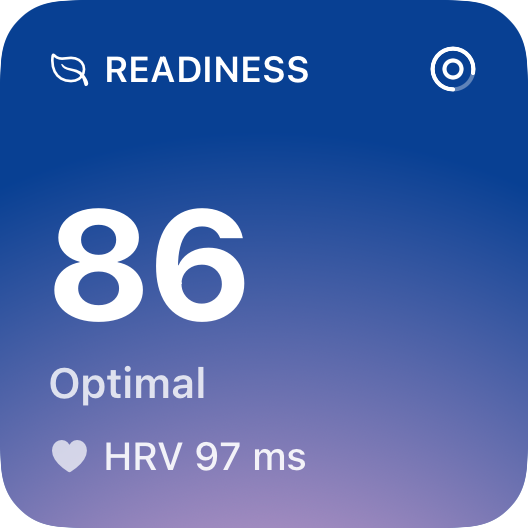
Example Readiness widget with the ring battery indicator in the top-right corner.
What the indicator shows
The small ring icon fills according to the latest battery level available from Oura. It appears on supported small and medium Home Screen widgets, including Readiness, Sleep, Activity, and other health views. A charging symbol appears when Oura has recently reported that the ring is charging. The indicator changes color when the battery is low and shows an alert symbol when it is very low.
The icon is meant for a quick glance; it does not print a percentage on the widget. For an exact reading, check the battery level in the Oura app. If a recent battery reading is unavailable, Ring Widget shows a dashed ring instead of implying a current level.
How to turn it on
- Update Ring Widget, then open the Oura app and let your ring sync.
- Open Ring Widget. If you see Enable ring battery status, tap Reconnect Oura and complete Oura's authorization screen. Existing connections may need this step to grant access to battery data.
- Add a Ring Widget Home Screen widget if you do not have one yet. Our iPhone widget setup guide walks through the steps.
- To change the setting on an existing widget, touch and hold it, choose Edit Widget, and check Show Ring Battery. The setting is on by default for supported widgets.
The battery indicator is part of the widget layout, so you can keep your Sleep or Readiness view while adding a quick charge check. It does not appear on Ring Widget's Lock Screen widgets or Apple Watch complications.
If the battery looks old or is missing
Ring Widget reads the latest battery sample synced to Oura; it does not connect directly to your ring. Open the Oura app and wait for the ring to sync, then open Ring Widget and give iOS time to refresh the Home Screen. Oura's widget guide also explains that its widgets show data from the last ring sync.
If the indicator is missing entirely, check Show Ring Battery in the widget settings and look for a reconnect prompt in Ring Widget. A dashed ring means battery data is temporarily unavailable. If your other metrics are also stale, use our widget troubleshooting guide to narrow down the cause.
One less thing to remember
Battery status now sits next to the Oura insight you check most often. Download Ring Widget to add it to your Home Screen; some widget layouts require a purchase.