New Oura Ring? 10 Things to Set Up First
Just unboxed an Oura Ring? Charge, pair, check the fit, connect Apple Health, turn on battery alerts, and add widgets so your first weeks of data are worth reading.
The first weeks with a new Oura Ring are mostly about getting clean data in. Sleep and Readiness scores appear after your first night, but Oura keeps learning your baselines for several weeks, and some features need two weeks or more of nights before they show anything. Oura's setup guide
This checklist covers the settings worth getting right on day one, in the order we would do them on an iPhone. It applies to Oura Ring 5, Ring 4, and Gen3.
1. Charge the ring before you pair it
Put the ring on its charger before you open the app. A full charge takes about 20–80 minutes, depending on how much battery is left. Oura's battery guide
Starting with a full battery means the first night is recorded without interruptions, so your first scores are based on a complete night.
2. Pair it and sign in to the right account
Install the Oura app, turn on Bluetooth, and follow the pairing steps. If you are upgrading from an older ring, sign in to your existing Oura account instead of creating a new one: your membership and history belong to the account, not the ring. Discover Oura Ring 5
Ring 5 sizing is slightly different from Ring 4, so do not assume your old size carries over. Use the Ring 5 sizing kit if you have not ordered yet.
3. Check the fit before the first night
Wear the ring on the finger you sized it for. It should feel snug without being tight, and it should not spin freely; a loose ring can produce gaps in sleep and heart rate data.
Fingers swell in the evening and in warm weather, so check the fit at night as well as in the morning. If the ring only feels right on one hand, keep wearing it there so your data stays consistent.
4. Complete your profile
Several features depend on the age, sex, height, and weight in your profile. Cardio Capacity uses them for its first VO2 max estimate, and Cardiovascular Age requires them before it can show a result. Cardio Capacity requirements Cardiovascular Age requirements
If you connect Apple Health in the next step, Oura imports those details from the Health app, and you edit them there instead of in Oura.
5. Connect Apple Health and fix double-counted steps
The Apple Health integration sends Oura's sleep, heart rate, steps, workouts, and mindful minutes to the Health app. It also brings workouts, Cardio Fitness, weight, and other data back into Oura. On Gen3 and later rings, it requires an active membership. Oura's Apple Health guide
If you also wear an Apple Watch, your steps can be counted twice. In the Health app, open Browse → Activity → Steps → Data Sources & Access, tap Edit, and drag the source you trust most to the top of the list.
6. Turn on battery notifications
Oura Ring 5 typically lasts 6–9 days per charge and Ring 4 lasts 5–8 days, so it is easy to forget to charge. In the Oura app, open the menu, choose Settings → Notifications, and turn on battery level notifications. They do not appear while the ring is in Airplane Mode. Oura's battery guide
A short top-up while you shower or work at a desk is often easier than waiting for a low battery. Our Oura Ring battery guide covers battery life by generation and how to check the charge from your Home Screen.
7. Start tagging habits from the first week
Tags record things like caffeine, alcohol, late meals, travel, or a sauna session. They do not change your scores. Instead, they let Oura show how a habit lines up with your sleep, Readiness, and activity over time. Oura includes more than 100 tags, and you can create your own. Using tags in Oura
Tagging from the start gives Oura's Discovery Hub more to work with: it needs data from at least 14 of the past 30 days before it can show a new discovery.
8. Give your baselines time
Treat your first two weeks as calibration. Some features show up only after enough data:
- Daytime Stress: at least five days of continuous wear. Daytime Stress
- Symptom Radar: at least seven nights of sleep data in the past 14 days. Symptom Radar
- Resilience: at least 10 days of data. Resilience
- Cardiovascular Age: at least 14 nights in the past 30 days. Cardiovascular Age
A low score in week one is not a verdict. If you want to understand an early number, start with our guides to the Readiness Score and the Sleep Score.
9. Add your scores to the Lock Screen and Home Screen
Oura includes its own iPhone widgets: Sleep widgets for the Home Screen and Lock Screen widgets for Sleep, Readiness, Activity, and battery. Oura's widget guide
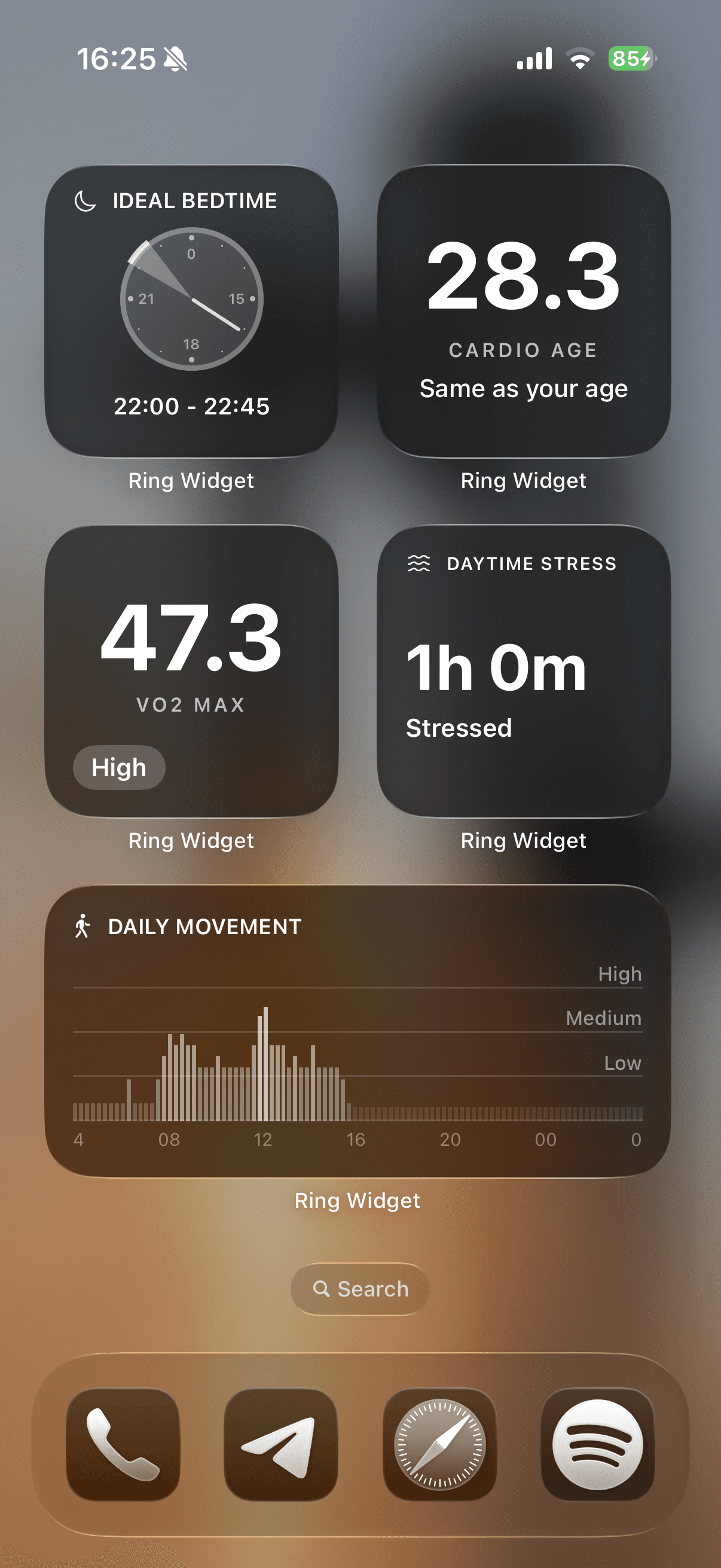
If you want more than that, Ring Widget is an independent app that adds layouts for Readiness, Sleep, Activity, Daily Movement, Daytime Stress, Cardio Age, VO2 max, body temperature, and ideal bedtime. It works on iPhone, iPad, Mac, and Apple Watch. Our iPhone widget setup guide walks through adding them.
10. Set up Apple Watch, if you wear one
Oura's companion app and watch-face complications put your scores on your wrist. The watch shows data synced through your iPhone; it does not connect directly to the ring. Oura's Apple Watch guide
Our Oura and Apple Watch guide explains which complications to choose and why the watch may not update immediately.
What to skip in week one
You do not need to explore every tab right away. Wear the ring every night, tag the habits you are curious about, and look at trends after two or three weeks. Once your baselines settle, our list of Oura features you are probably not using is a good next step, and these apps work with Oura if you want to connect other services.
Download Ring Widget free to put your new ring's scores on your Home Screen. Readiness and Sleep widgets are free; other layouts require a purchase.
Sources
- Set Up an Oura Ring — Oura Member Care
- Oura Ring Battery Tips — Oura Member Care
- Apple Health Integration — Oura Member Care
- Using Tags — Oura Member Care
- Oura Widgets — Oura Member Care
- Discover Oura Ring 5 — Oura Member Care